
Metadata History
Mar 25, 2024 | 2 min read
The Metadata History provides the user with the history of the changes done to the metadata and the possibility of reverting them to a previous version.
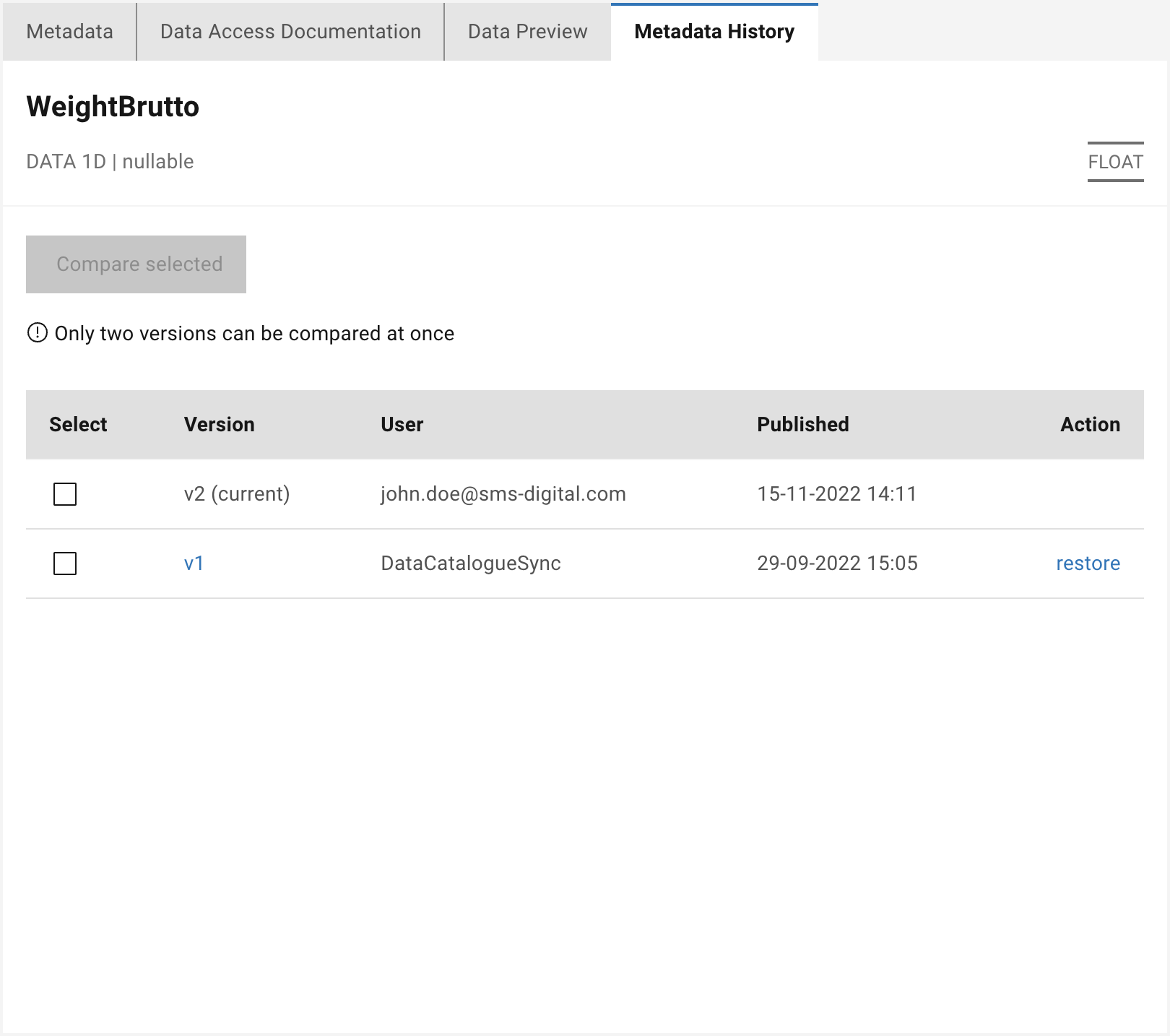
Figure 25 Metadata history view
The metadata history view provides a table containing a list of changes conducted to the metadata of a single signal. The list of the changes provides the version of the change, the user who did it, and the date and time of the change. If the change is made on the data source side, the user is indicated as DataCatalogueSync. Additionally, the user can restore a chosen version under the action column. The user is requested to confirm the choice once the restore button is clicked.
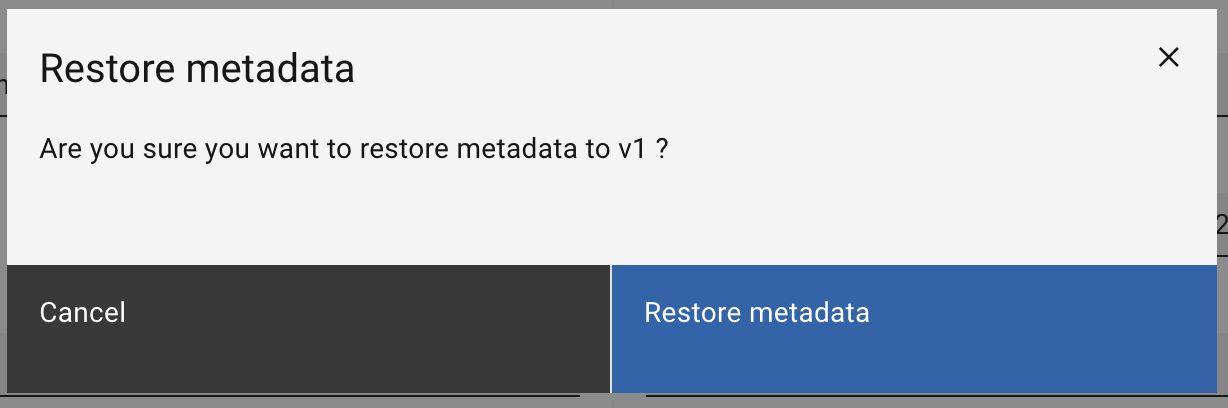
Figure 26 Metadata restore confirmation pop up
The restored information is set as current with a new version number. The user, who applied the restoration, is set as the user who did the changes.
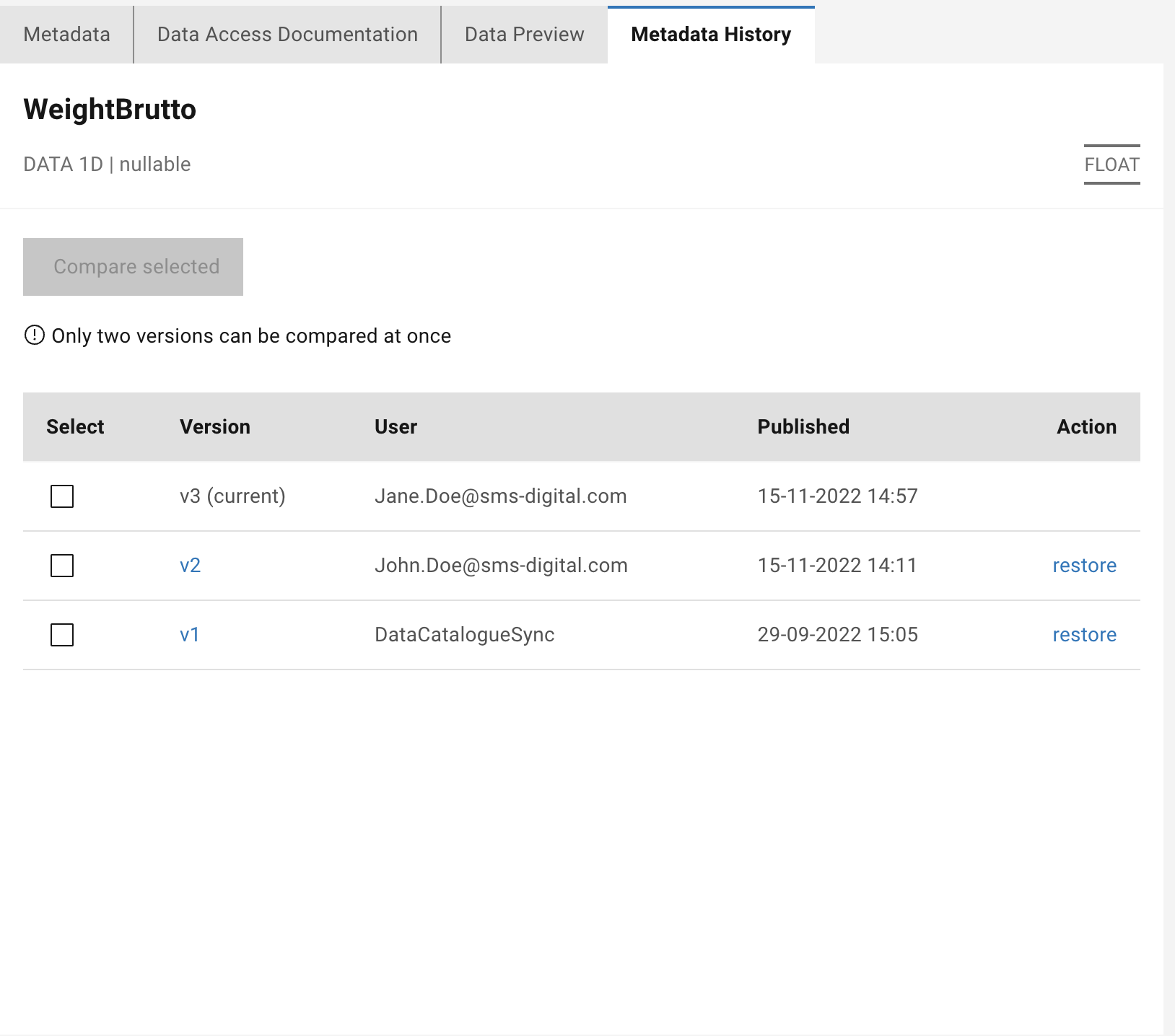
Figure 27 Restored metadata histroy
In addition to the log and the restore, the metadata history view provides the possibility to preview old versions and compare two versions.
Version Preview
To preview the version before the restoration, the user should click on the version number in the table. The preview is displayed under the metadata history tab in the same format as the metadata view.
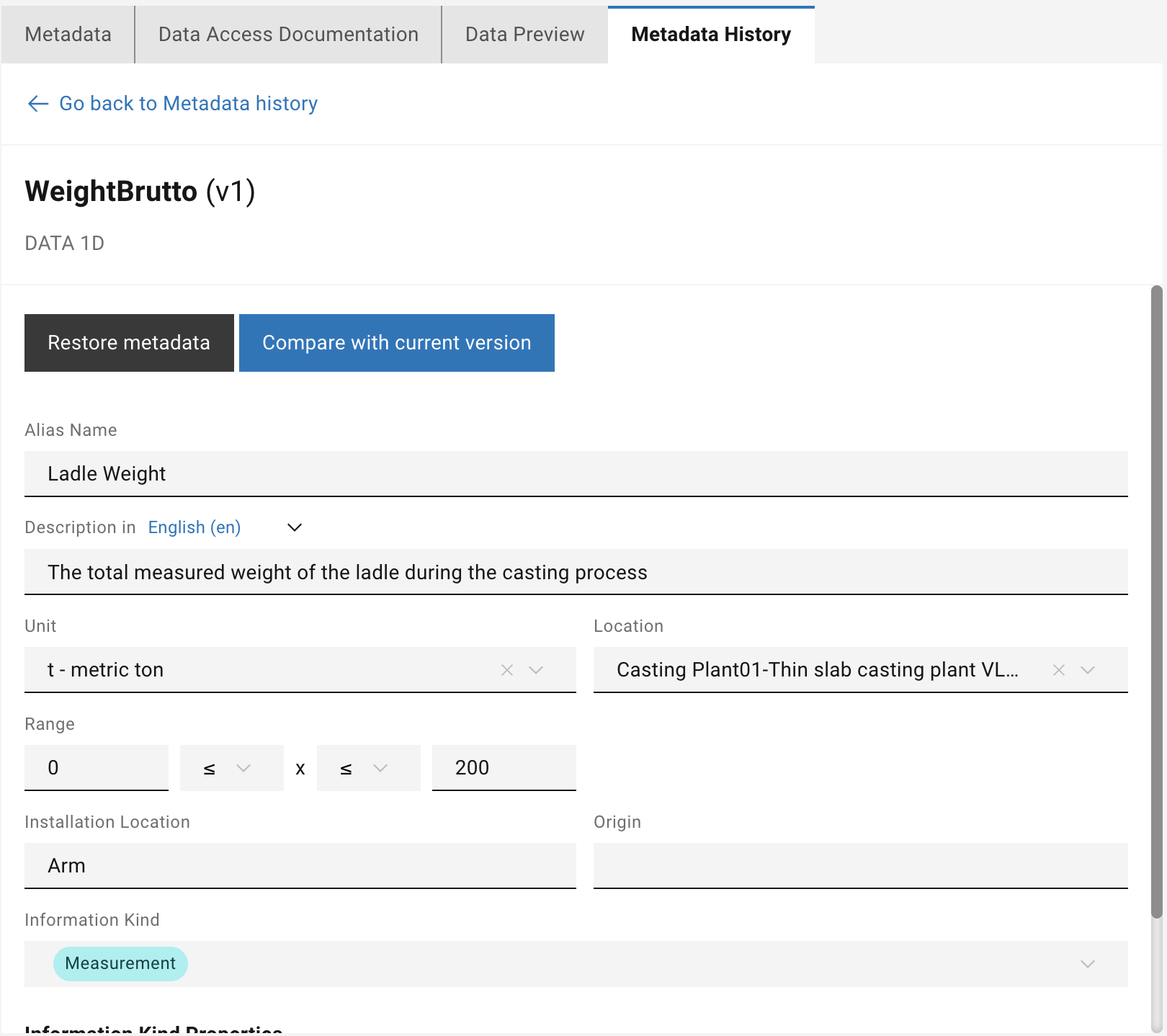
Figure 28 Preview of a metadata history version
In the metadata history preview, the user has two options, either restore the previewed version or compare it with the current version.
Version Compare
Comparing two versions is achieved in two-way:
1- Select two versions in the history table and click on compare (see Metadata history view).
2- Click on compare with the current version in the version preview (see Preview of a metadata history version).
The compare view appears in a popup. On the left side and right side of the popup, the two selected versions to compare are displayed.
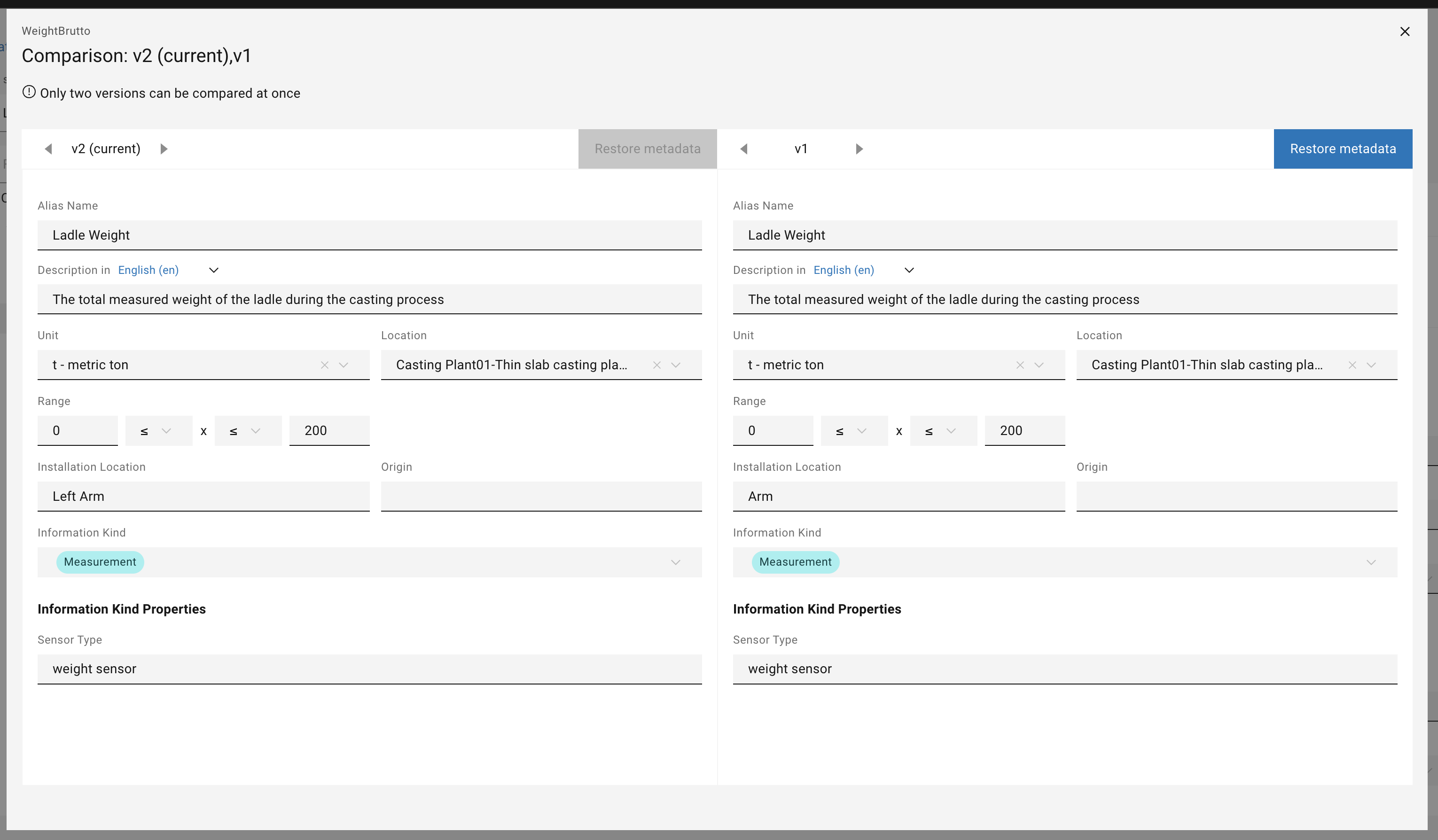
Figure 29 Compare view of two different history versions
With the help of the arrows near the version number, the user can navigate between the versions to compare. The restore is achieved with the help of the restore button on the side of the desired version.