
Metadata search
Mar 25, 2024 | 4 min read
The metadata search is the core feature of the SMS Data Catalogue.
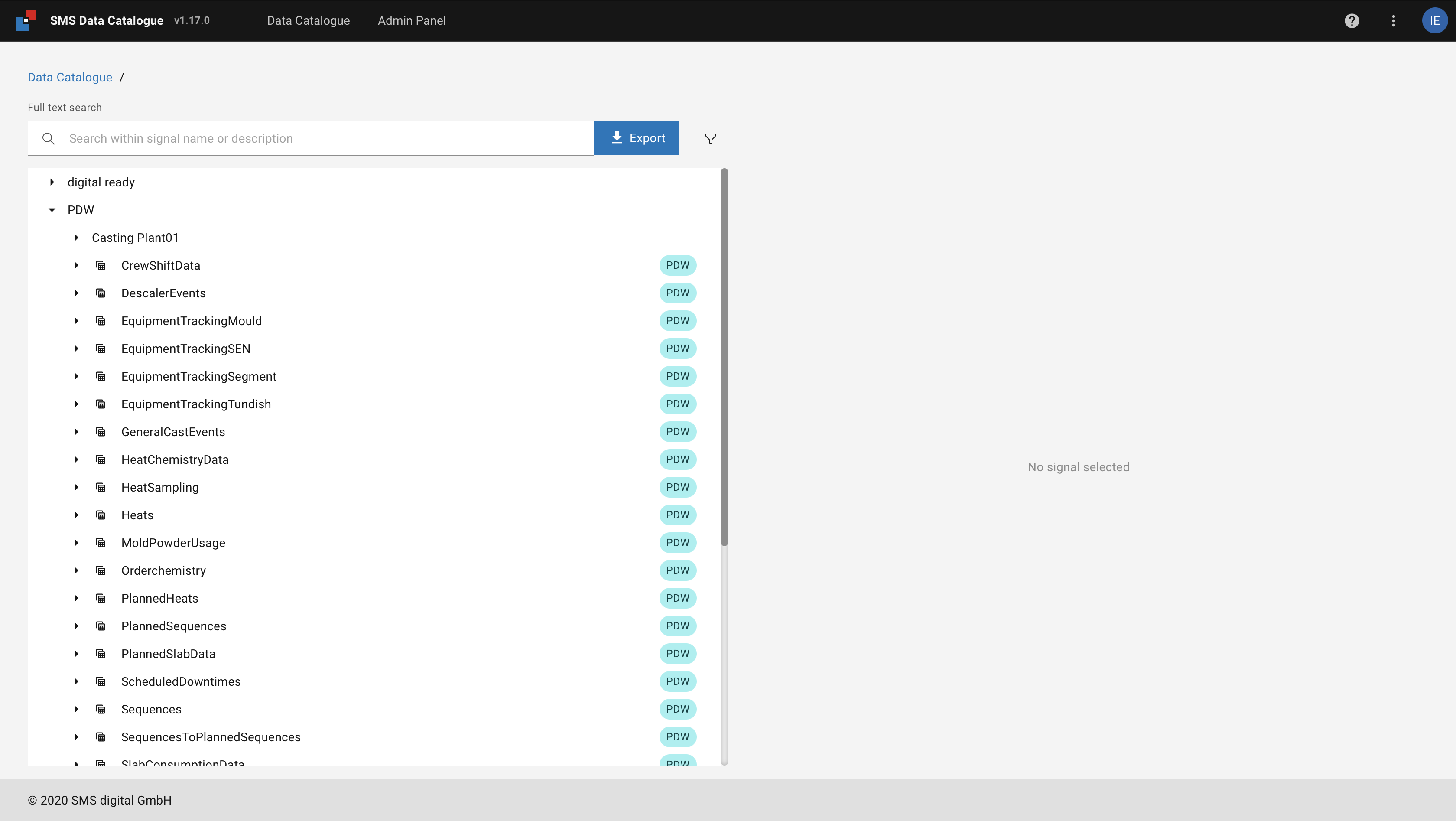
Figure 8 SMS Data Catalogue search screen
On the left-hand side of the SMS Data Catalogue search screen controls are available to effectively find the SMS Data Catalogue items:
Searching for data
The user is able to search for data by either knowing:
parts of the name (see: Full-text search)
parts of the description (see: Full-text search)
Full-text search
The full-text search of the SMS Data Catalogue allows the user to find any signal that matches the given search string. This match does not have to be exact, and it is case-insensitive. The SMS Data Catalogue finds matches in either the name of signals or their description. As SMS Data Catalogue supports localized descriptions, the searches in the locale are executed based on the browser locale. If certain items do not have a localized description, the SMS Data Catalogue searches the English description.
For example, by typing weight in the full-text search,
the search engine returns all signals with weight either in the name or description.
The search is executed independent of the casing or the word being part of a longer word in the signal name or description.
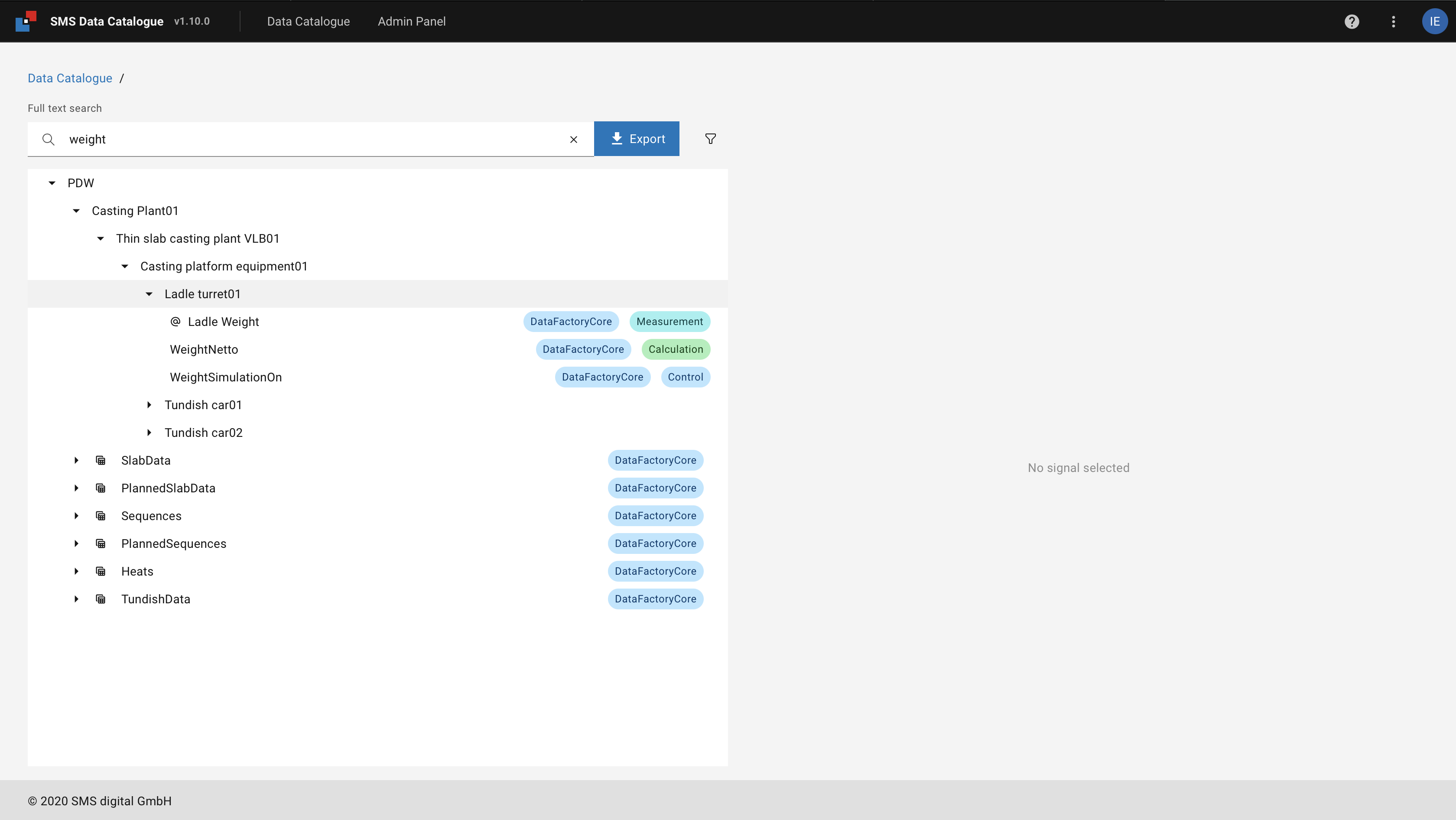
Figure 9 Example: Searching for weight
Signals prefixed with an @ indicate that the name is the alias name provided for the particular signal.
When hovering the mouse over the icon, the original name of the item is displayed as a tooltip.
Tree branches prefixed with a table icon indicates tables in the data source. By expanding the branch the user is able to find all signals in the table.
The following sections go into greater details on how this search may be further refined:
Advanced search
The following subchapters explain the available helpers in the full-text search syntax, allowing you to narrow your search even further.
Wildcard search
Search with the asterisk * wildcard is supported.
When adding asterisk between two words slab*weight, the search returns only signals with the first word slab followed
by any text and the second word weight in either their name or description.
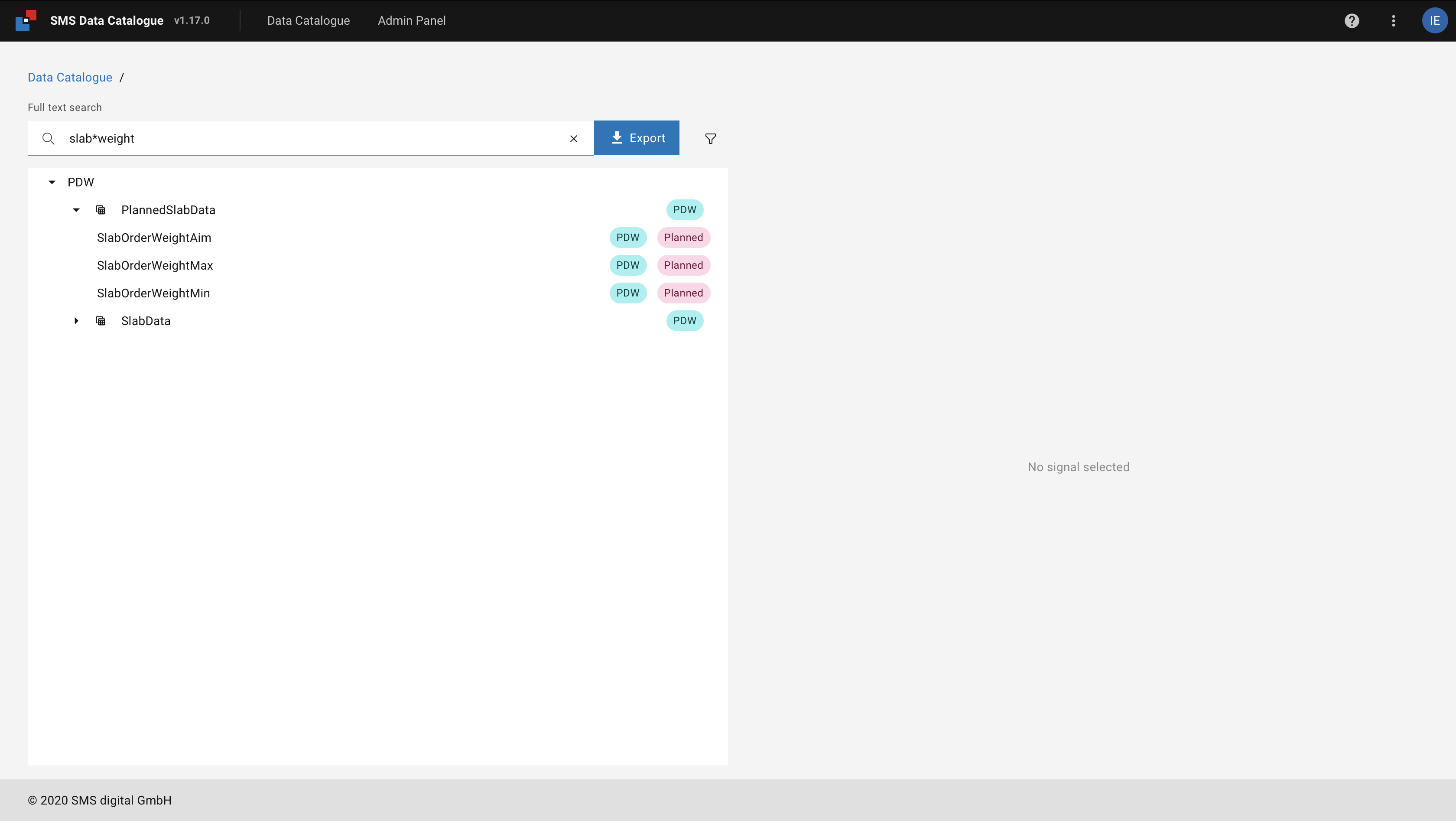
Figure 10 Example: Wildcard search for slab*weight
Advanced filter
This chapter introduce the advanced filter that allow the user to narrow down the search results.
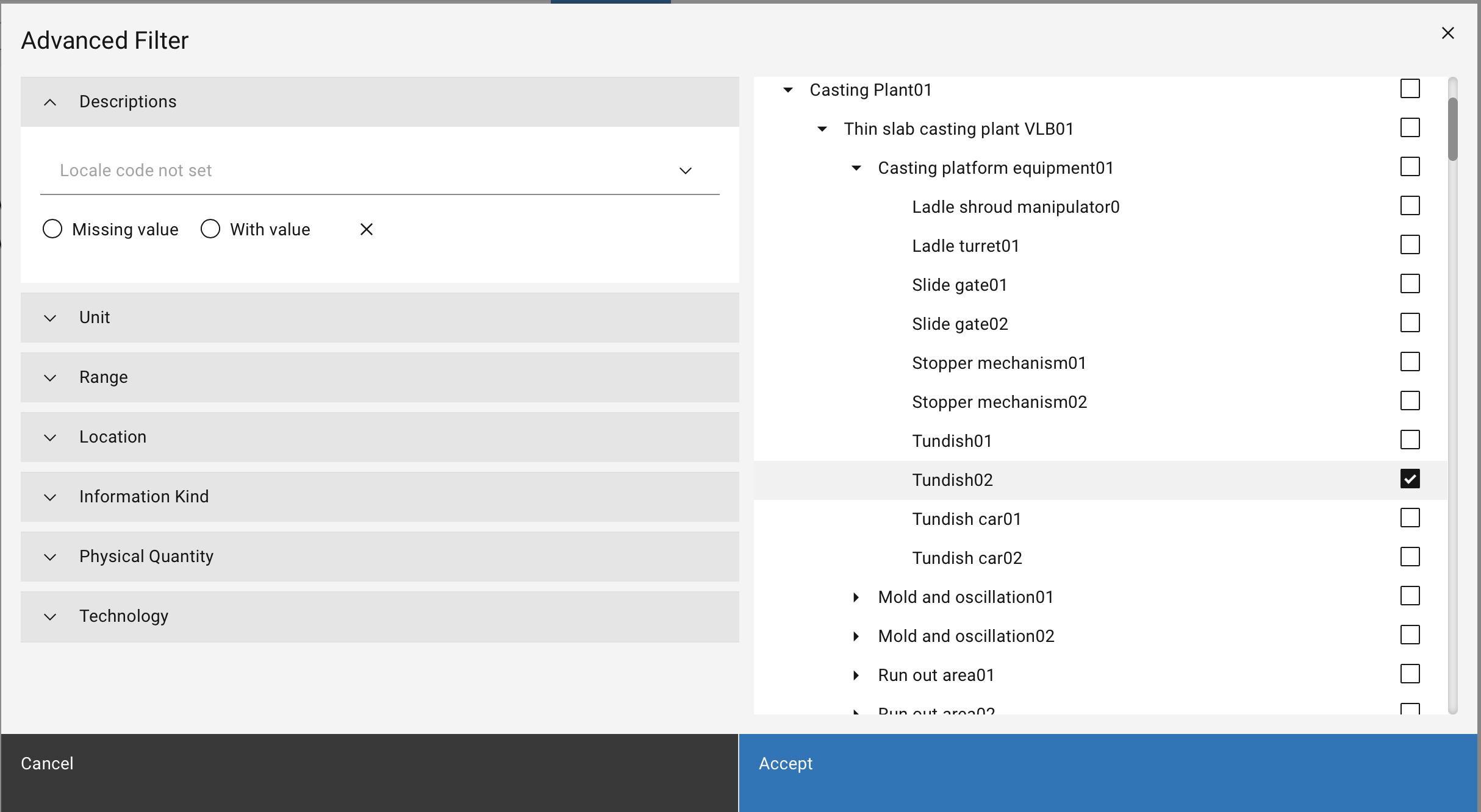
Figure 11 Advanced Filter modal
All the filters provided allows the possibility to filter the signal to one only missing the value of only having it. Additionally multiple filter selection is allowed.
Filter by location
On the right side of the Advanced filter overview the user is able to filter the signals to one or more location by selecting the location from the list. Removing the filters can be achieved either by unchecking the box or on the left side under the Location expandable.
Filter by description language
In case of descriptions in different languages is provided the user can filter the signal based on the language. This allows the user to display only the signals that has a description in the chosen language.
Filter by unit and physical quantity
Both filters enable the possibility of filtering the signal by the unit in the unit filter or/and by the physical quantity of the unit.
Filter by type
Filtering by type is an effective way to narrow down a list of search results. It shows only the signals the user the interested in. The section Information Kind describes the available choices and their meaning.
The user can unselect all, select one, or multiple Information Kind by clicking into the filter, which opens the dropdown menu.
Choosing items that have no type set is done by selecting No information kind
Filter by technology
SMS Data Catalogue provide the possibility have having several Datasources technologies to import data from. With the help of this filter the user is able to filter the signals based on a chosen data source technology.
Search result view
The search result view displays the matching signals according to the specified search string and filters. It displays the signal name along with the Datasource technology (see Datasources) and Information Kind. The technology and Information Kind are displayed as a colored field on the right-hand side of the result item.
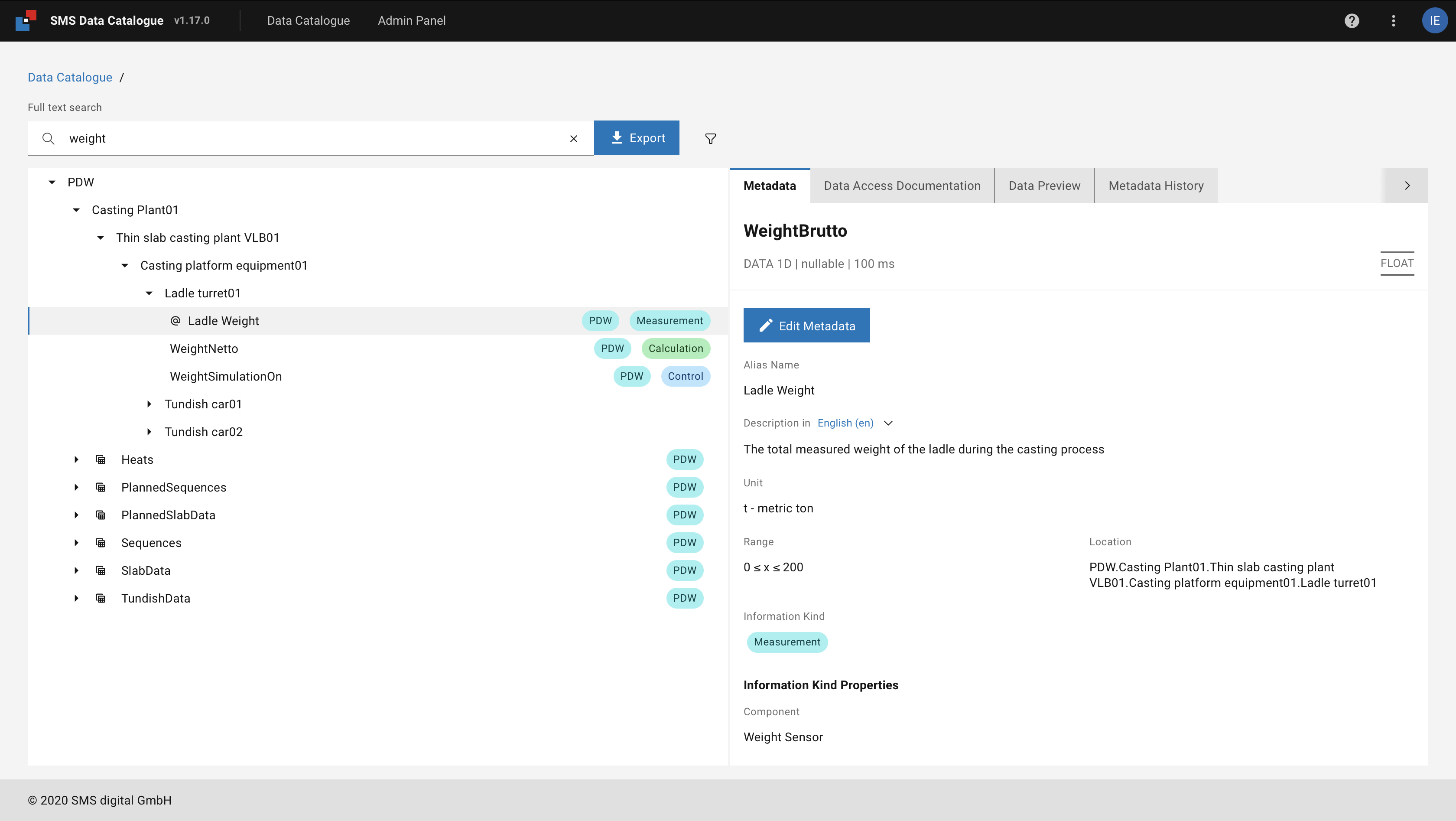
Figure 12 Search result view
Clicking on an item shows its details in the Metadata detail view.
Metadata Export
By clicking on the Export button the metadata contained in the current search into a CSV file.
It may be edited and re-uploaded via the Metadata Import.
Figure 13 Detail Export button
Metadata detail view
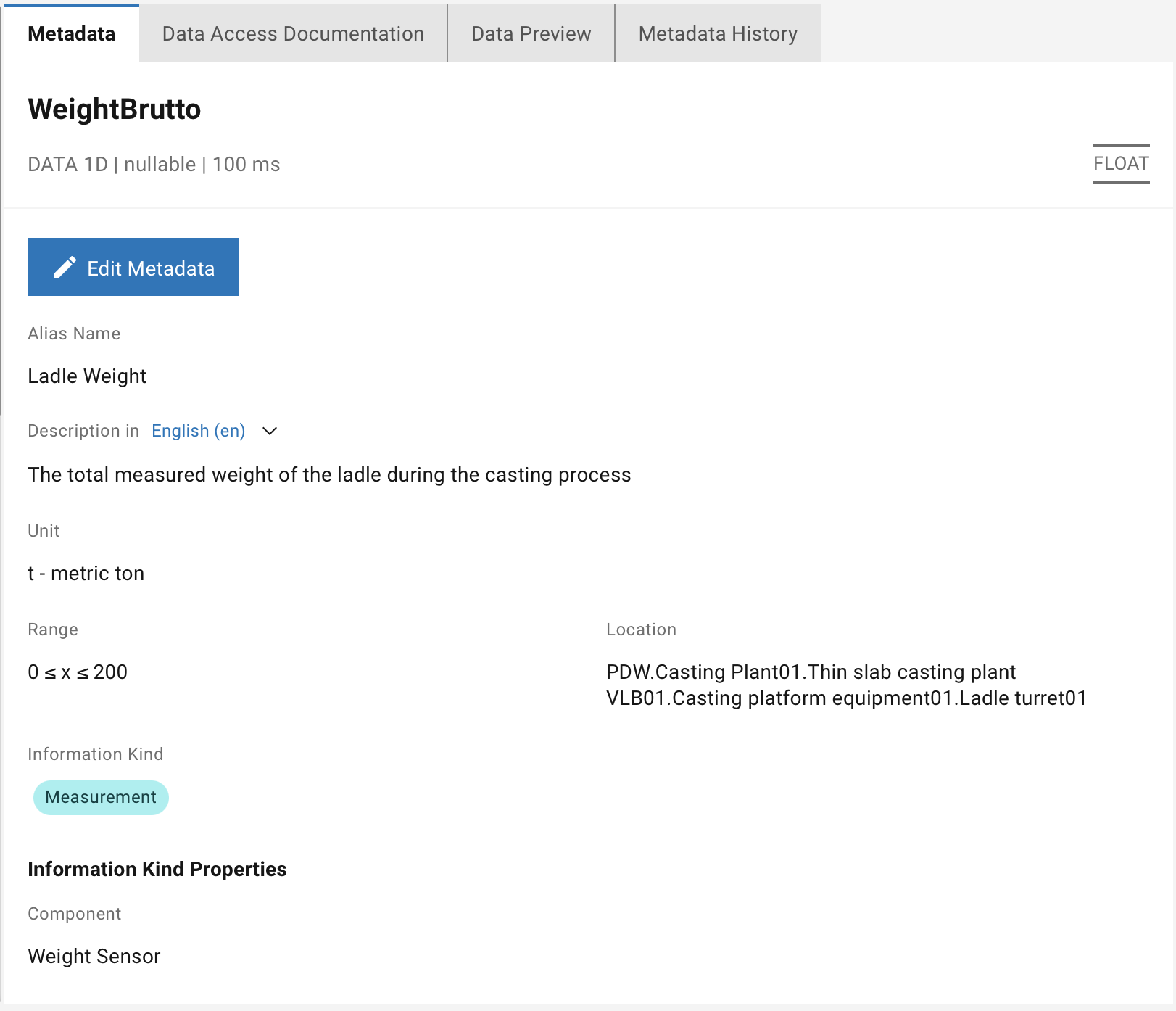
Figure 14 Detail view of a signal
The headline of the detail view indicates the name and the technical metadata of the currently selected item.
Additional information about the chosen signal is found under the tabs:
Metadata
The Metadata tab lists the available contextual information (Metadata) of a selected signal.
The “Edit” button is just visible to the users having the role that allows curating the metadata For more details, see Editing of metadata.
Data Access Documentation
The Data Access Documentation tab provides the necessary information to access the data in the database. For more details, see Data Access Documentation.
Data Preview
The Data Preview tab provides a preview of the data of the selected signal. For more details, see Data Preview.
Metadata History
The Metadata History tab provides the history of the metadata changes. For more details, see Metadata History.