
Metadata Import
Mar 25, 2024 | 3 min read
The Metadata Import feature has been introduced to edit many metadata items at once in the SMS Data Catalogue. The access is achieved under the Admin Panel.
File format
Large amounts of metadata can be imported via tabular flat files.
These files must be a UTF-8 encoded, delimiter formatted files, such as .csv, .tsv, or .txt.
Each line is interpreted as a new entry.
Values are seperated via Column seperators.
Complex text must be quoted, see String quotation.
File parsing parameters
The following parsing parameters define how an uploaded file can be formatted.
Column seperator
The SMS Data Catalogue supports the following characters as column separators:
,- Comma - default;- Semi-colon|- PipeTabulator
NULL values
In order to define which values shall be interpreted as unset/unavailable/NULL, the following choices are available:
1,"",3- Quoted empty string (see String quotation) - default1,null,3- Null
String quotation
To allow proper text that might include the Column seperator, you must quote text containing such characters:
1,"a,b,c or d",3. Otherwise the SMS Data Catalogue will interpret the line as five columns instead of three.
The single or double quotes can be chosen:
"my text"- Double quote'my test'- Single quote
Escape character
For more complex data, it might be required to escape certain values. Considering the following example:
It’s either 8”, 16” or 16” wide
This description contains a single quote ', double quotes " and a seperator character ,.
In order to tell the file parser to interpret these as text and not as format characters, they should be escaped:
1,"It's either 8\", 16\" or 16\" wide",3 or 1,'It\'s either 8", 16" or 16" wide',3 depending on the chosen quotation style.
The following escape characters are supported:
\- Backslash/- Forward-slash
File header
The first line of your file may contain the name of the columns.
File content
The file uploaded should contain at least one line. In order to update the correct metadata items, the file must contain a column with the metadata item identifier. It is recommended to use the Metadata Export function to obtain a file, containing the item identifiers and the current set of metadata.
Import Wizard
The import of the metadata is accomplished in three steps:
Step 1: Upload metadata
Figure 31 shows the first step of the import wizard. On the left-hand side of the screen, the user can upload a metadata file by either dragging and dropping a file onto the blue square on the left-hand side or by clicking on it.
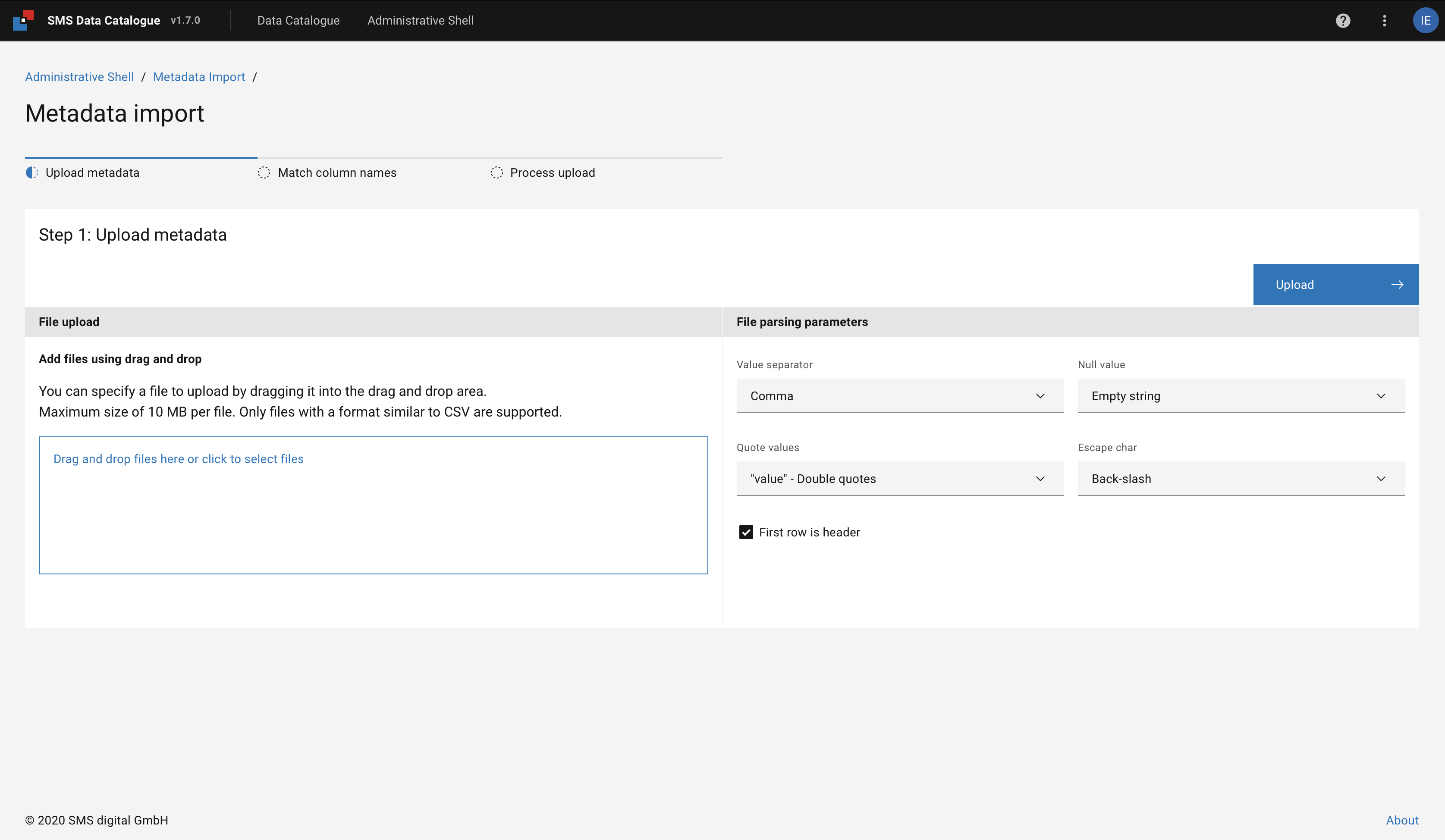
Figure 31 Metadata upload menu.
On the right-hand side the user can set the File parsing parameters required to read the file, see Figure 32.
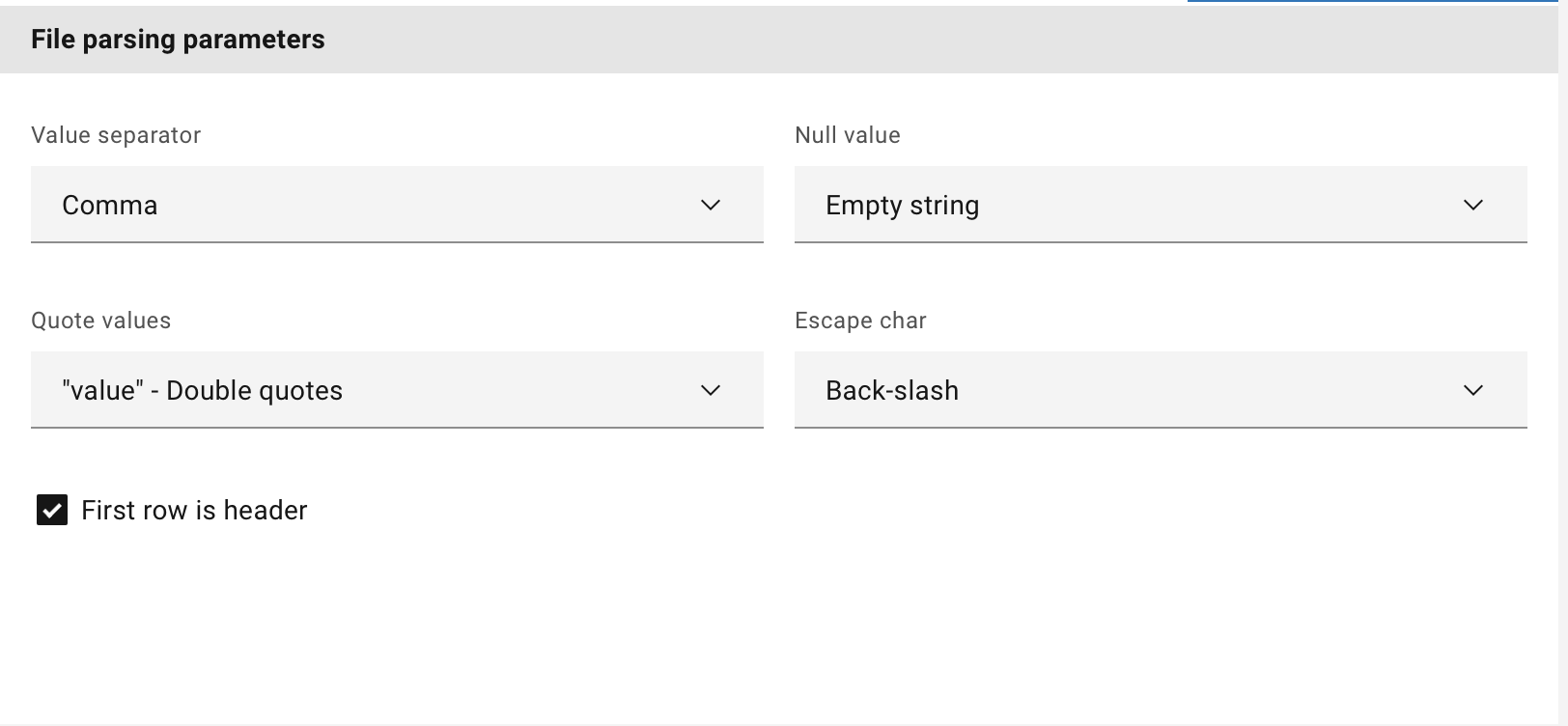
Figure 32 File the parameter setting.
Step 2: Match Columns Names
Figure 33 shows the step of matching the content from the uploaded file with the Metadata model.
The attributes of the Metadata model are displayed on the top left of the screen. A preview of the uploaded and parsed file is shown at the bottom.
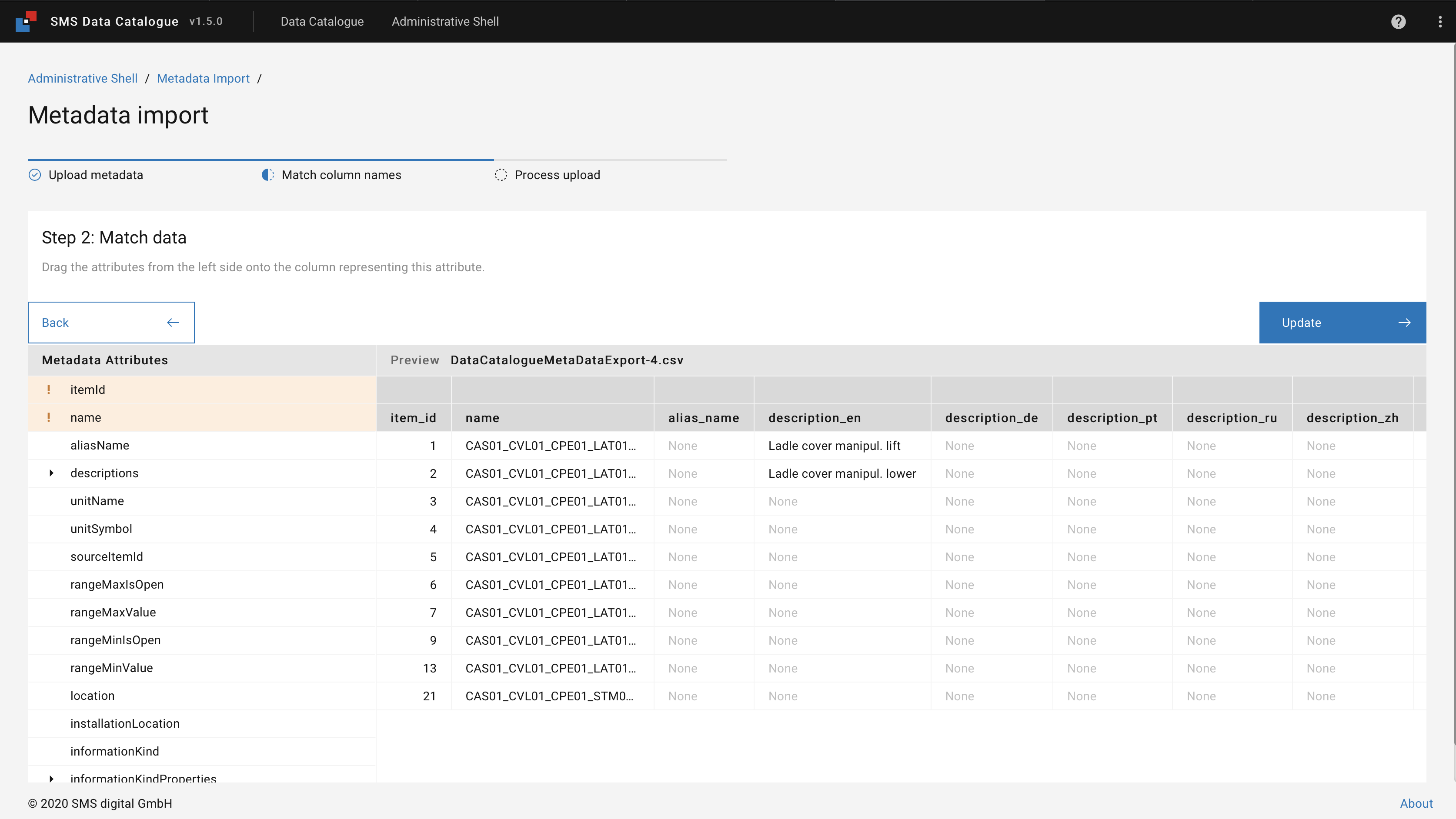
Figure 33 Match Columns Names.
By dragging and dropping, the user can assign the desired attribute from the left hand of the screen to the column with the corresponding information in the preview.
The attribute matched appears on the top of the column (see Figure 33), and the attribute gets highlighted in green.
Items highlighted in orange and prefixed with an exclamation mark ! are mandatory.
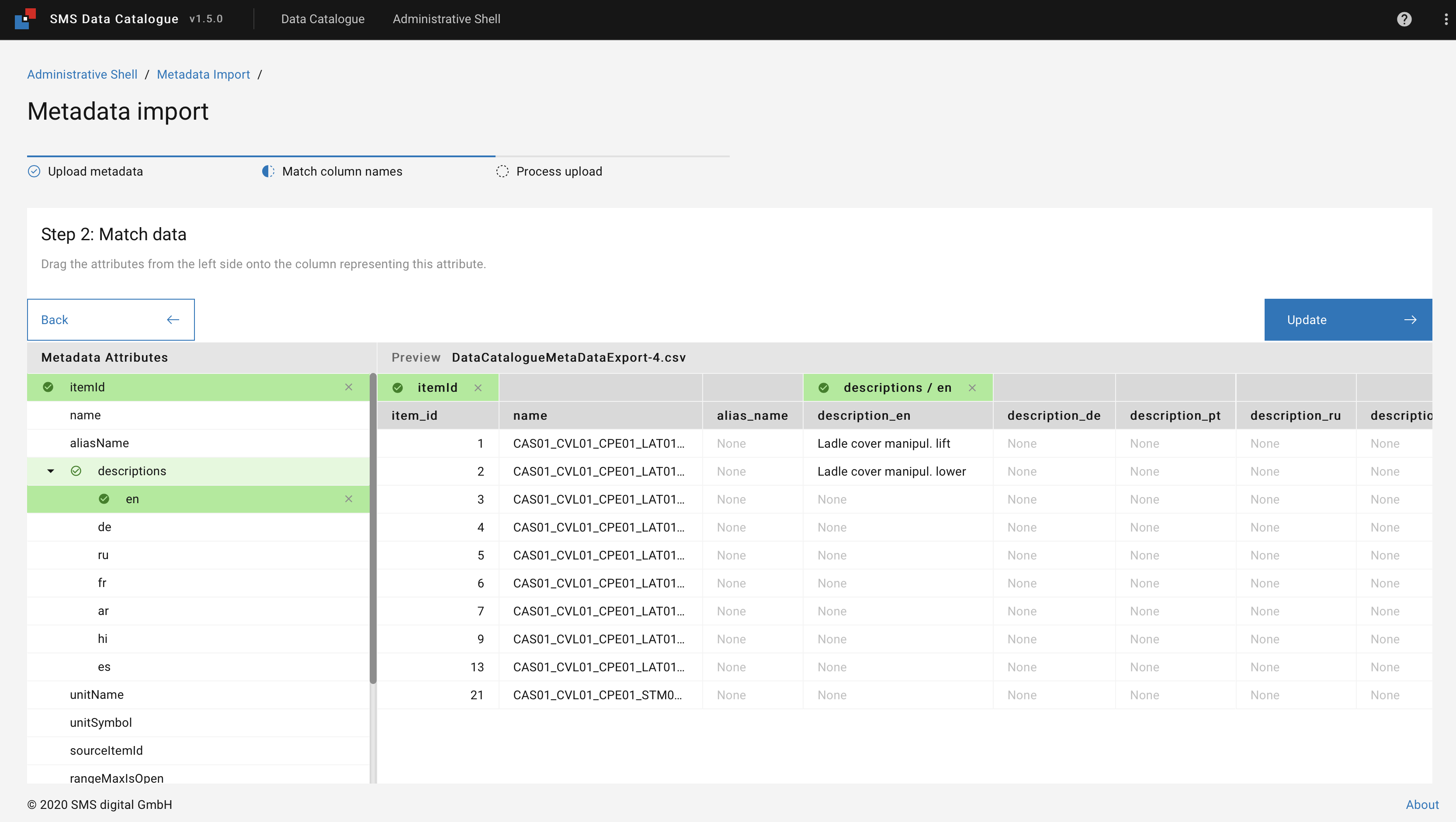
Figure 34 Overview of a matched column.
If child attributes (for example en of the descriptions) are matched partially, the root is highlighted in light green.
The user can upload the metadata by clicking Update, once the desired columns from the uploaded file and the itemId are matched.
Step 3: Metadata process
The last step (see Figure 35) shows the status of the metadata import. Depending on the file’s size, the processing might take a while. In case the upload was successful, the following message is displayed.
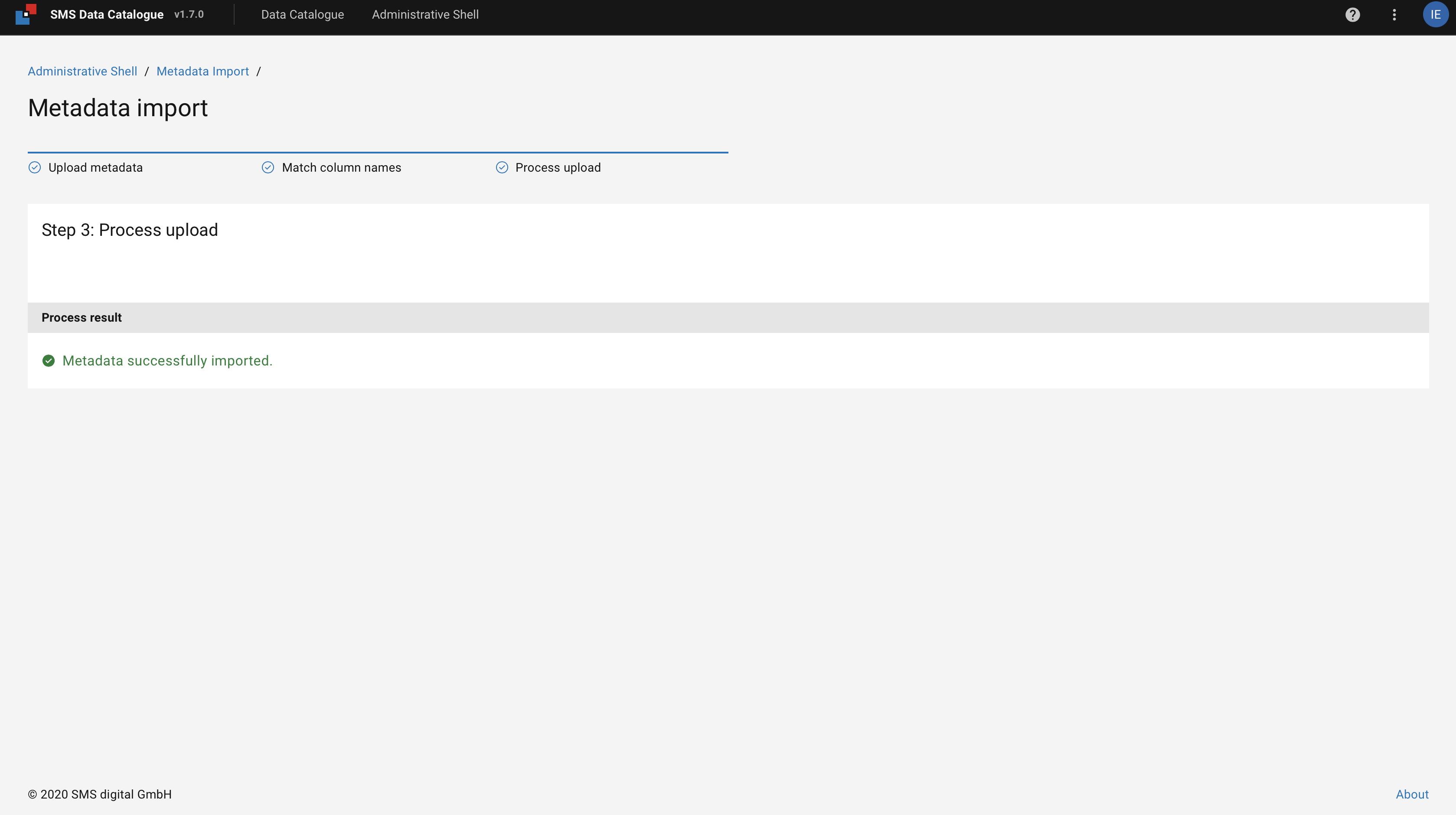
Figure 35 Final step data is succefully imported.
In case the SMS Data Catalogue encountered an error during the processing, error messages indicating the original line in the file appear on the right-hand side, see Figure 36. In this case, NO metadata will be altered.
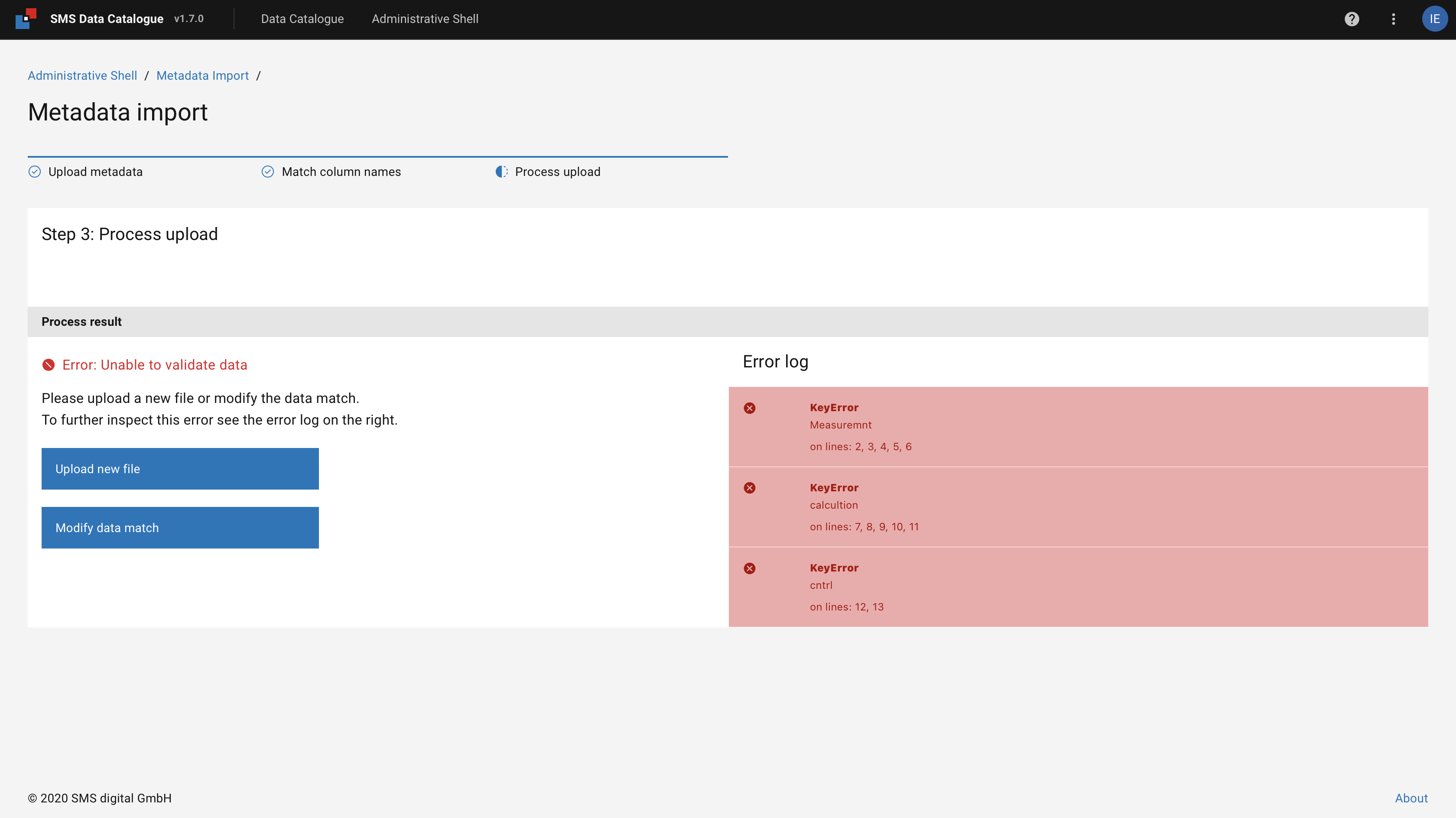
Figure 36 Error apearing in the uploaded metadata.