
Datasources
The datasource configuration allows users to add and edit datasources
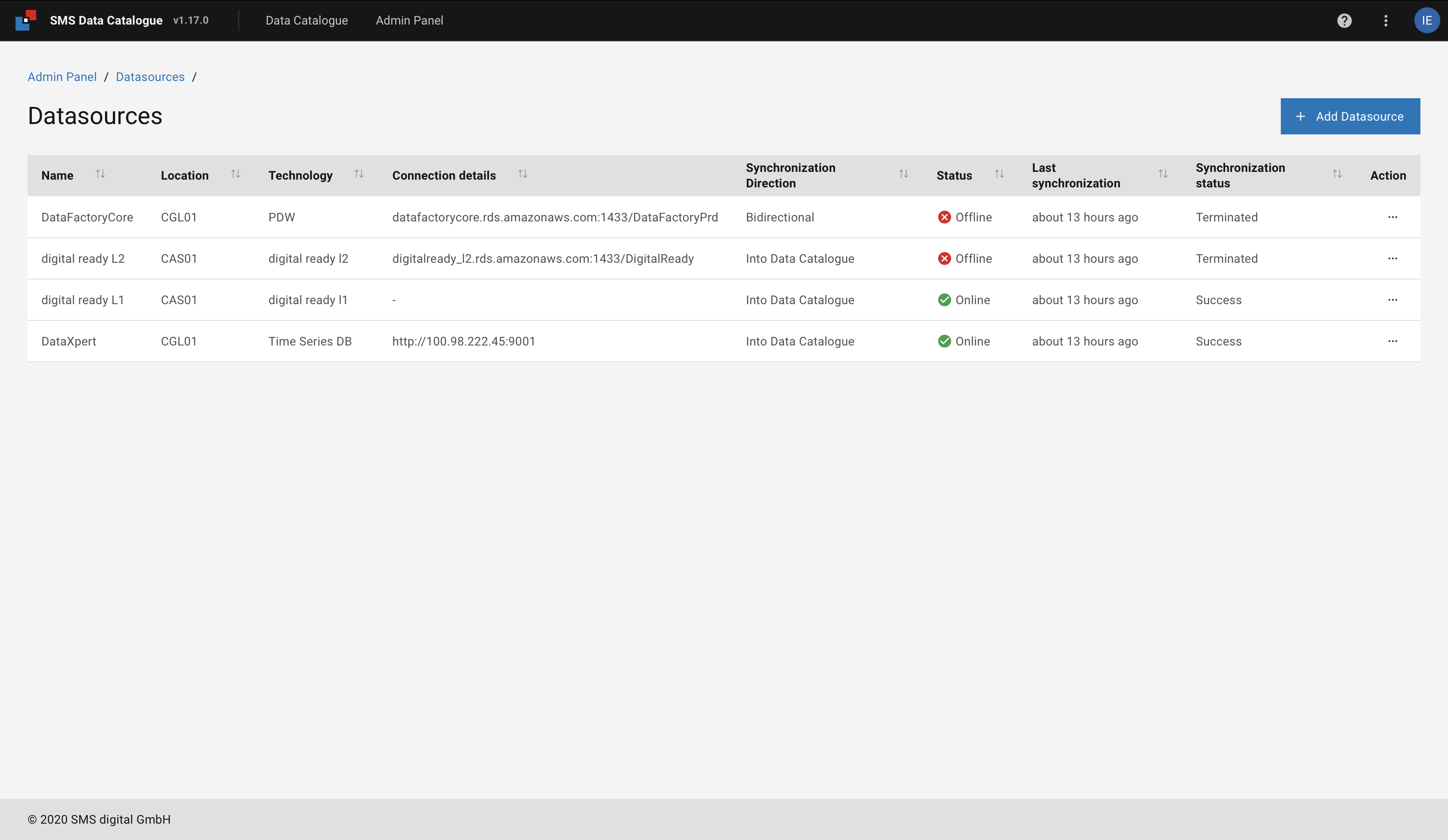
Figure 41 SMS Data Catalogue datasources.
Add new datasource
The button +Add Datasource allows user to add a new datasource.
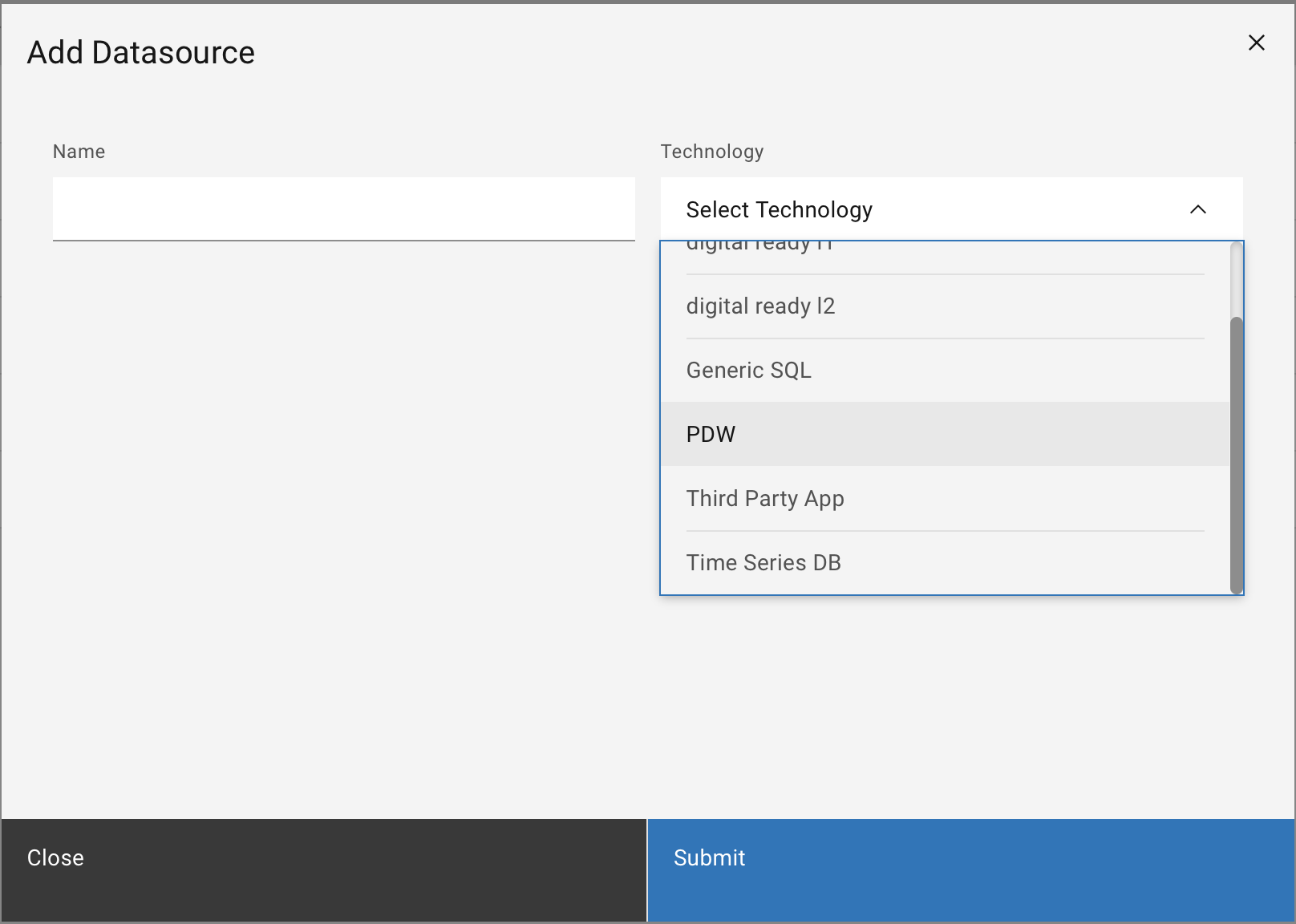
Figure 42 Add and edit datasource menu.
The following information are required to create a new connection to a datasource:
Name
A user given name representing the connection.
Technology`
A list of the technology supported by the SMS Data Catalogue: PDW, Time Series DB, digital ready l1, digital ready l2,Generic SQL.
PDW/ Time Series DB: This technology should be selected if the datasource is part of the SMS DataFactory.
digital ready l1/digital ready l2: This technology should be selected if the data source is an SMS group digital ready plant.
Generic SQL: This technology should be selected if the data source is SQL DB and not one of the listed above.
Third Party App: This technology allows the user to push the signals metadata from any third party application into the Data Catalogue using the app API.
The user is required to choose the technology based on the datasource to connect.
Based on the technology chosen different type of information is required for the connection.
The SMS Data Catalogue support three type of technologies:
SQL databases
API
.CSV File
SQL Databases
The SQL Databases is supported for the technologies PDW, digital ready L2 and Generic SQL.
Once one of these technologies is choosed the user is required to add the following information:
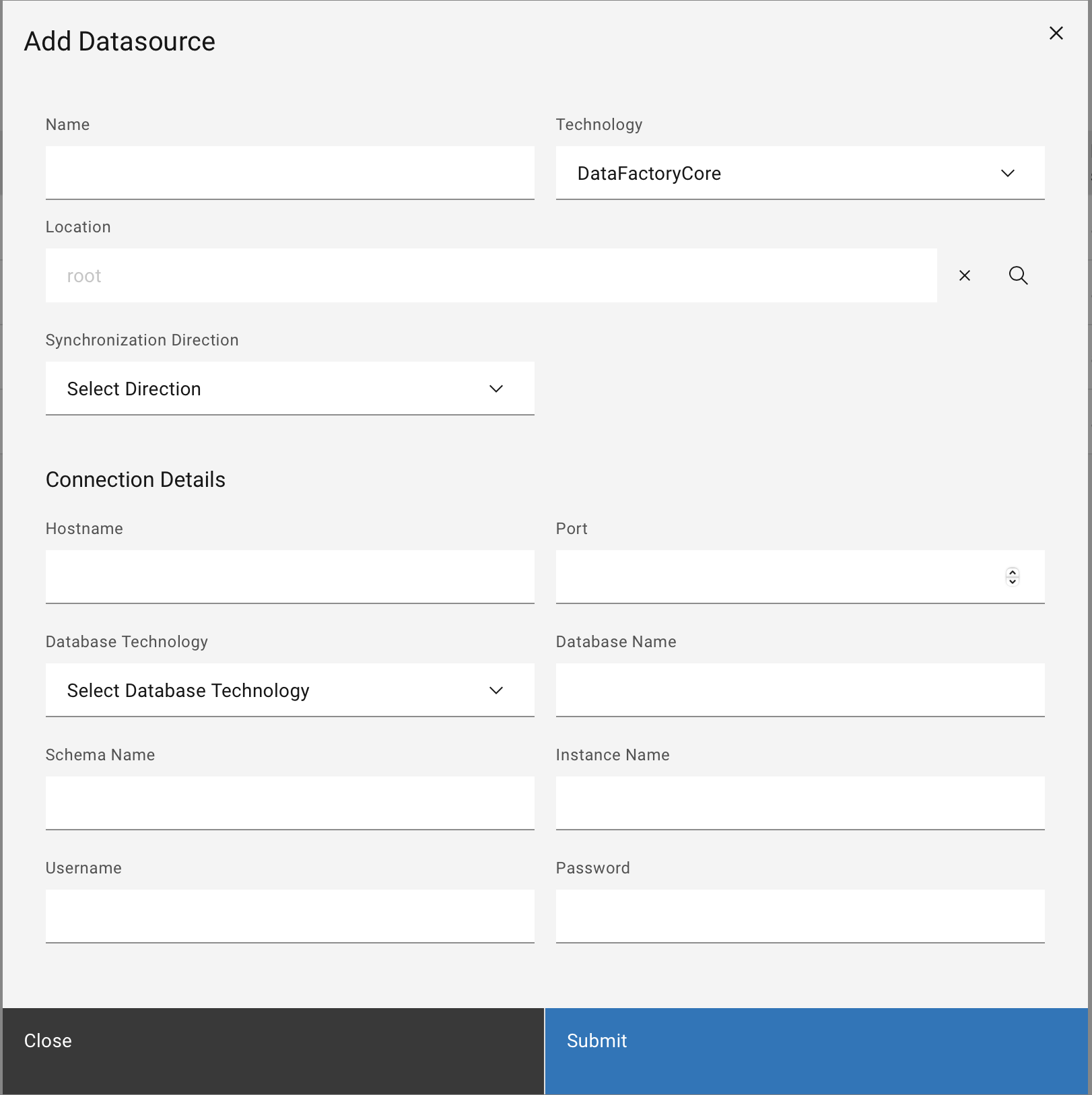
Figure 43 Configuration needed for the connection to a SQL based Datasource.
Database Technology
The Database Technology indicate the type of database used in the source, such as SQLServer and PostgreSQL. The list of database technology provided varies based on the technology chosen by the user.
Location
The location shows the physical location (plant, site, equipment,…) defining the origin of the data imported. It is set for the datasource represents the root location of all signals imported imported from it. The location can be either selected from the list of locations already found in the SMS Data Catalogue or can be newly created.
Synchronization Direction
Provides the user with three option for the synchronization:
Into Data Catalogue: Just the Changes on the datasource side are synced into the Data Catalogue.
Into Datasource: Just the Changes on the Data Catalogue side are synced into the Datasource.
Bidirectional: The Changes on both side (SMS Data Catalogue and datasource) are synced.
Connection Details
In the connection details for the datasource the user is required to enter the necessary details to establish the connection.
API
The API connection is supported for the technology Asset Dictionary, Time Series DB, and Third Party App.
For the Asset Dictionary,and Time Series DB the Data Catalogue actively import the Signals from the Data source.
Once this technology is chosen, the user is required to enter the URL to the API and the credentials to access it.
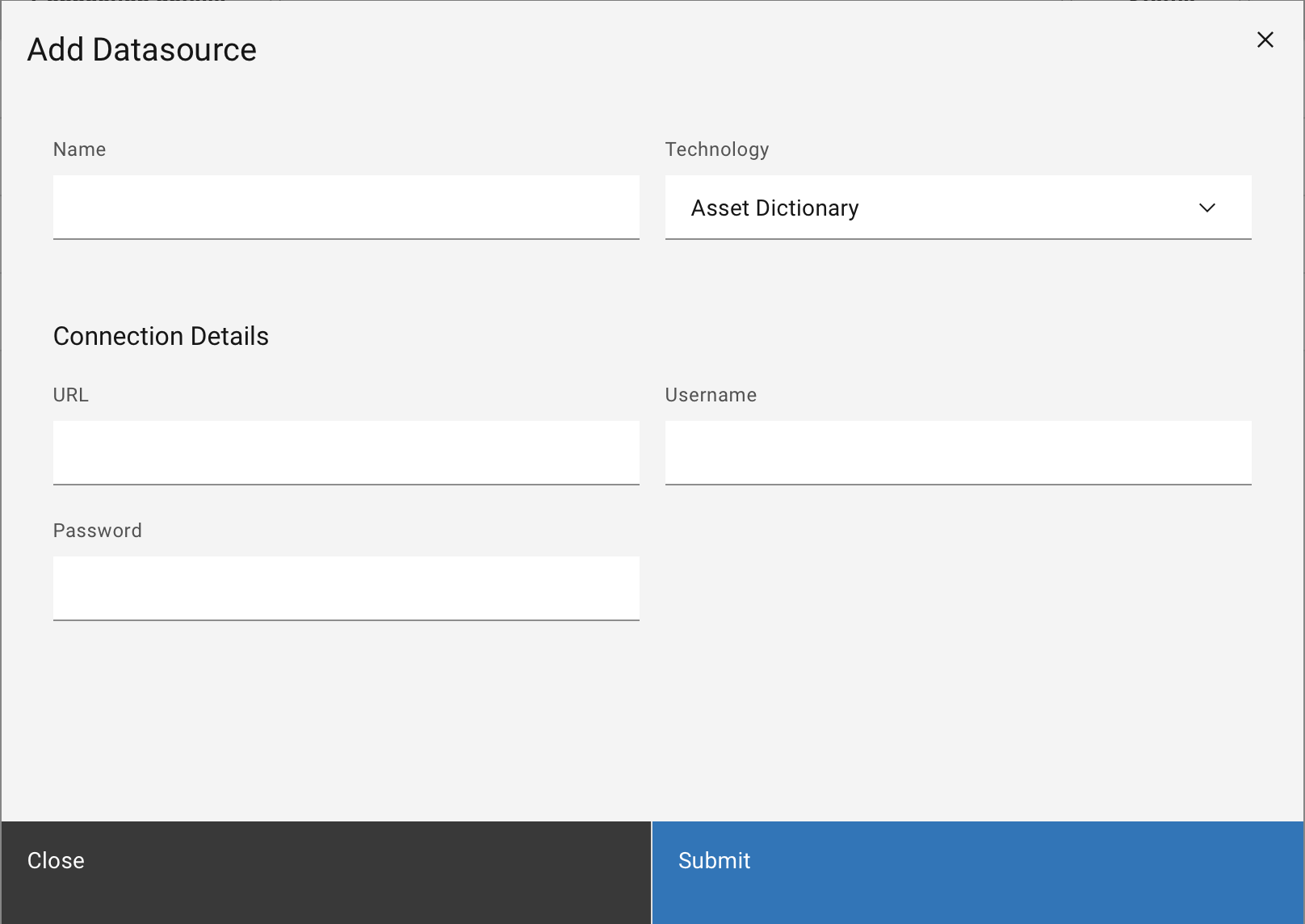
Figure 44 Configuration needed for the connection to a Asset Dictionary.
For the Third Party App the user has to create the data source by giving it a name and optionally a location.
In the Connection details the user has to add an identification for the source such as IP of the server in the server identification field.
Once the Data source is created the user is provided with an API Key that should be kept secret and used to create and edit the signal inside the Data Catalogue.
Adding the new signal to the Data Catalogue is achieved by using the API source_item and
passing the API Key and a unique ID for the signal created, see REST API.
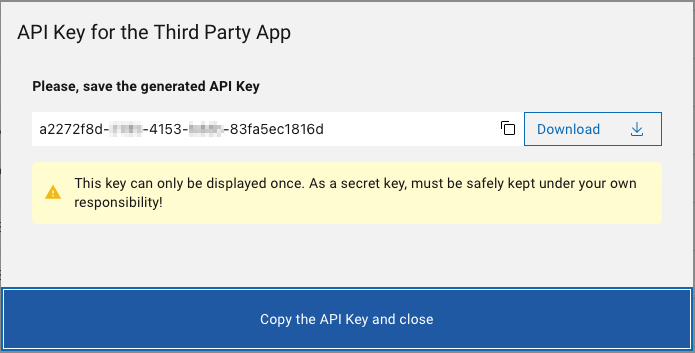
Figure 45 Pop up window displaying the API key.
CSV File The CSV is supported for the digital ready L1 information, which is not hosted on a database and is not accessible by the SMS Data Catalogue. The information should be provided in a CSV file in the format agreed on for digital ready (for more information, contact the support).
When the metadata on the source are updated the user has to upload the .CSV with the same Module identification using the edit mode of the datasource.
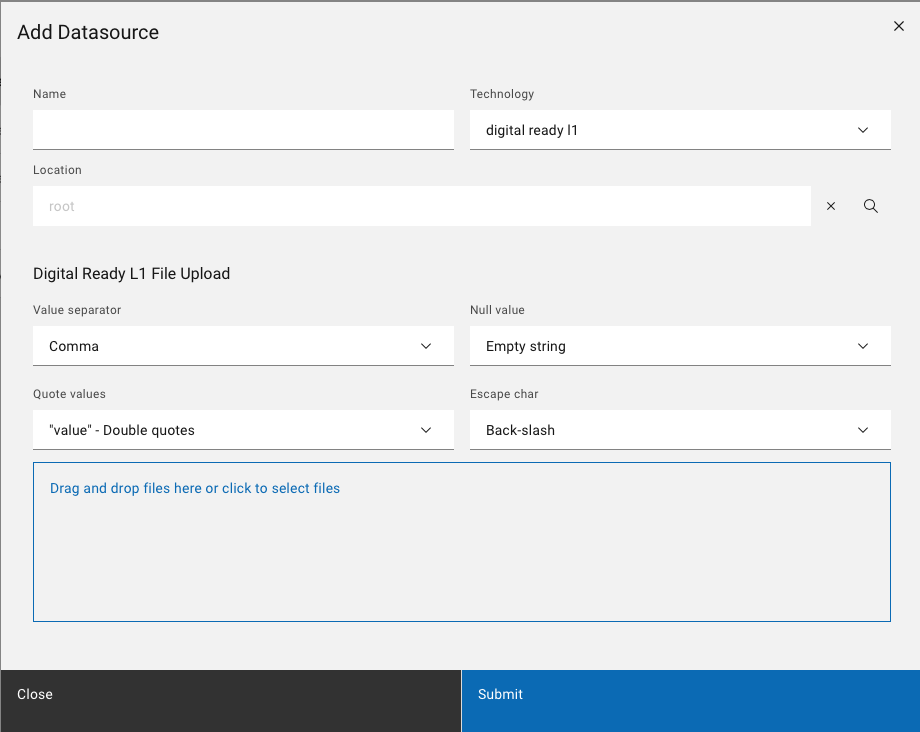
Figure 46 Configuration needed for the upload of digital ready L1 metadata.
List of connections
The Table in the middle of the page contains all the data sources connected to Data Catalogue. In addition to the name, location, and connection details, the following information is provided:
Status
Present the status of the connection (online/offline).
Last synchronization
Indicate when the last synchronization with the datasource was done.
Synchronization status
Indicate the status of the synchronization between: pending, running, success, aborted, and terminated.
Action
The Action menu allows the user to trigger the synchronization manually, check the synchronization log in case of errors, edit the data source configuration, or remove unused data sources. The removal is only possible if no metadata from the selected source has been imported into Data Catalogue.
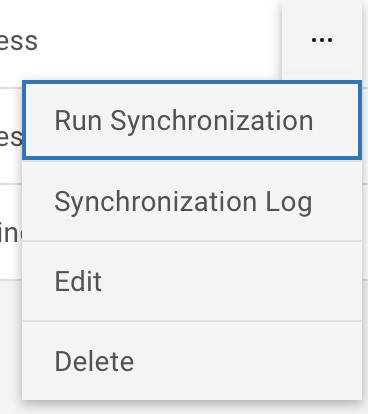
Figure 47 Datasource action menu.